

Complete Guide to Microsoft Power Automate in 2026
This comprehensive 2026 guide covers everything you need to know: the difference between cloud flows and desktop RPA, how AI Copilot now generates flows from natural language, the five flow types (automated, instant, scheduled, business process, and desktop), plus licensing options ranging from seeded Microsoft 365 plans to enterprise per-flow pricing.
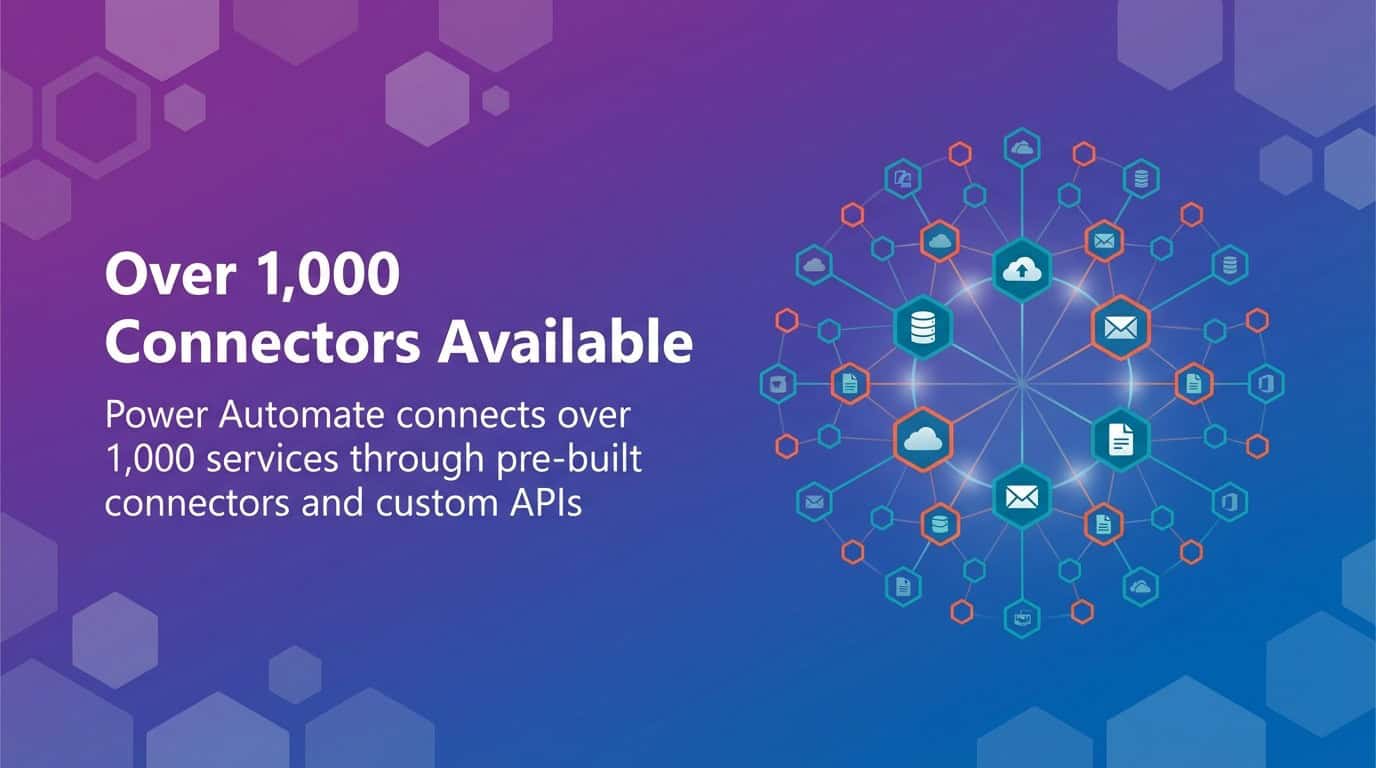
Microsoft Power Automate is a cloud-based service that automates repetitive workflows between apps and services to streamline business processes. This automation platform sits at the heart of Microsoft’s Power Platform ecosystem, connecting over 1,000 services through pre-built connectors and custom APIs.
As organizations face labor shortages and rising operational complexity, Power Automate addresses a fundamental challenge. Manual, repetitive tasks drain resources and slow progress.
Teams are moving from experimenting with automation to depending on it. Power Automate enables this shift by making workflow automation accessible to both technical developers and business users through low-code and no-code approaches.
This guide covers what Power Automate is, how it works, and how organizations use it to create digitally connected enterprises. You’ll understand the types of flows available, key capabilities, practical applications, and how Power Automate fits within the broader Microsoft ecosystem.
What Microsoft Power Automate Actually Does
Power Automate eliminates manual work by creating automated workflows between applications. The platform monitors for specific triggers, then executes predetermined actions across connected systems.
A practical example: When a customer fills out a form on your website, Power Automate can automatically add their information to your CRM, send a notification to your sales team, and create a follow-up task in Microsoft Teams. No manual data entry required.
According to Microsoft’s official documentation, Power Automate streamlines business processes by automating repetitive workflows between apps and services. This automation extends across the Microsoft 365 ecosystem and hundreds of third-party applications.
The platform serves two distinct automation needs through different flow types.
Cloud Flows for Digital Process Automation
Cloud flows handle digital process automation (DPA) across cloud-based applications. These workflows run entirely in the cloud, connecting web applications and services without requiring local software installation.
Cloud flows monitor for events like new emails, form submissions, or database changes. When the trigger condition occurs, the flow executes automatically, performing actions like sending notifications, creating records, or updating data across multiple systems.
Organizations use cloud flows to automate approval workflows, notification systems, data synchronization, and document routing.
Desktop Flows for Robotic Process Automation
Desktop flows provide robotic process automation (RPA) capabilities. These flows interact with desktop applications, legacy systems, and websites through UI automation, essentially mimicking human actions like clicking, typing, and navigating interfaces.
RPA becomes valuable when systems lack APIs or modern integration capabilities. Desktop flows can extract data from older applications, automate data entry across multiple programs, and handle repetitive tasks in applications that weren’t built for automation.
The combination of cloud flows and desktop flows addresses both modern cloud-based automation and legacy system integration challenges.
How Power Automate Evolved from Microsoft Flow
Power Automate launched originally as Microsoft Flow in 2016. The platform focused initially on simple workflow automation between Microsoft 365 applications and a limited set of third-party services.
Microsoft rebranded the service to Power Automate in November 2019. This change reflected expanded capabilities beyond basic workflow automation, including robotic process automation and deeper integration with the Power Platform.
The evolution continued with AI-powered features. Recent 2026 updates include Standalone Copilot access on Power BI Home and enhanced visualization capabilities, demonstrating Microsoft’s commitment to infusing AI across the Power Platform.

Today’s Power Automate represents a mature automation platform that combines workflow automation, RPA, AI capabilities, and extensive connectivity. The platform now supports enterprise-scale automation scenarios that weren’t possible with the original Microsoft Flow offering.
Types of Flows in Power Automate
Power Automate organizes automation into distinct flow types, each serving specific use cases. Understanding these types helps you select the right approach for your automation needs.
Automated Flows for Event-Driven Actions
Automated flows trigger based on specific events. When something happens in one application, the flow executes automatically without human intervention.
Common triggers include new email arrivals, form submissions, file uploads, database record changes, or social media mentions. The flow monitors for these events continuously, executing predetermined actions when conditions match.
A sales team might create an automated flow that triggers when a new lead enters their CRM. The flow automatically sends a welcome email, creates a follow-up task, and notifies the assigned salesperson.
Instant Flows for On-Demand Automation
Instant flows (also called button flows) execute manually when users trigger them. These flows appear as buttons in the Power Automate mobile app, SharePoint, or Teams, providing one-click automation for repetitive tasks.
Users trigger instant flows when they need automation on demand rather than automatically. Examples include requesting approval, generating reports, collecting data, or triggering notifications.
An operations manager might use an instant flow to generate a daily status report. One button click gathers data from multiple sources, formats the report, and distributes it to stakeholders.
Scheduled Flows for Time-Based Automation
Scheduled flows run on predetermined schedules. These flows execute at specific times or intervals, regardless of external triggers.
Organizations use scheduled flows for regular maintenance tasks, periodic data synchronization, daily report generation, weekly notifications, or monthly processing routines. The schedule can run hourly, daily, weekly, monthly, or at custom intervals.
A finance team might schedule a flow to extract transaction data from their ERP system every night at midnight, transform the data, and load it into their analytics platform.
Business Process Flows for Guided Workflows
Business process flows guide users through defined processes. These flows appear as visual stages on forms, helping users complete multi-step processes consistently.
Unlike other flow types that automate actions, business process flows focus on human guidance. They ensure users follow standardized procedures, complete required fields, and move through stages in the correct order.
A customer onboarding process might use a business process flow to guide service representatives through information collection, account setup, product configuration, and welcome communications.
Desktop Flows for UI Automation
Desktop flows automate interactions with desktop applications, websites, and legacy systems. These RPA flows record and replay user actions, automating repetitive tasks that involve clicking, typing, and navigating interfaces.
Desktop flows run on Windows machines, either attended (with user supervision) or unattended (fully automated). Organizations use desktop flows when applications lack APIs or when automating across multiple applications with different interfaces.
Core Components That Make Power Automate Work
Power Automate’s architecture combines several components that work together to create, execute, and manage automated workflows. Understanding these components clarifies how the platform delivers automation capabilities.
Connectors: The Integration Foundation
Connectors provide the integration foundation for Power Automate. Power Automate offers over 1,000 connectors to Microsoft APIs, third-party services, and custom APIs, enabling workflows that span multiple systems.
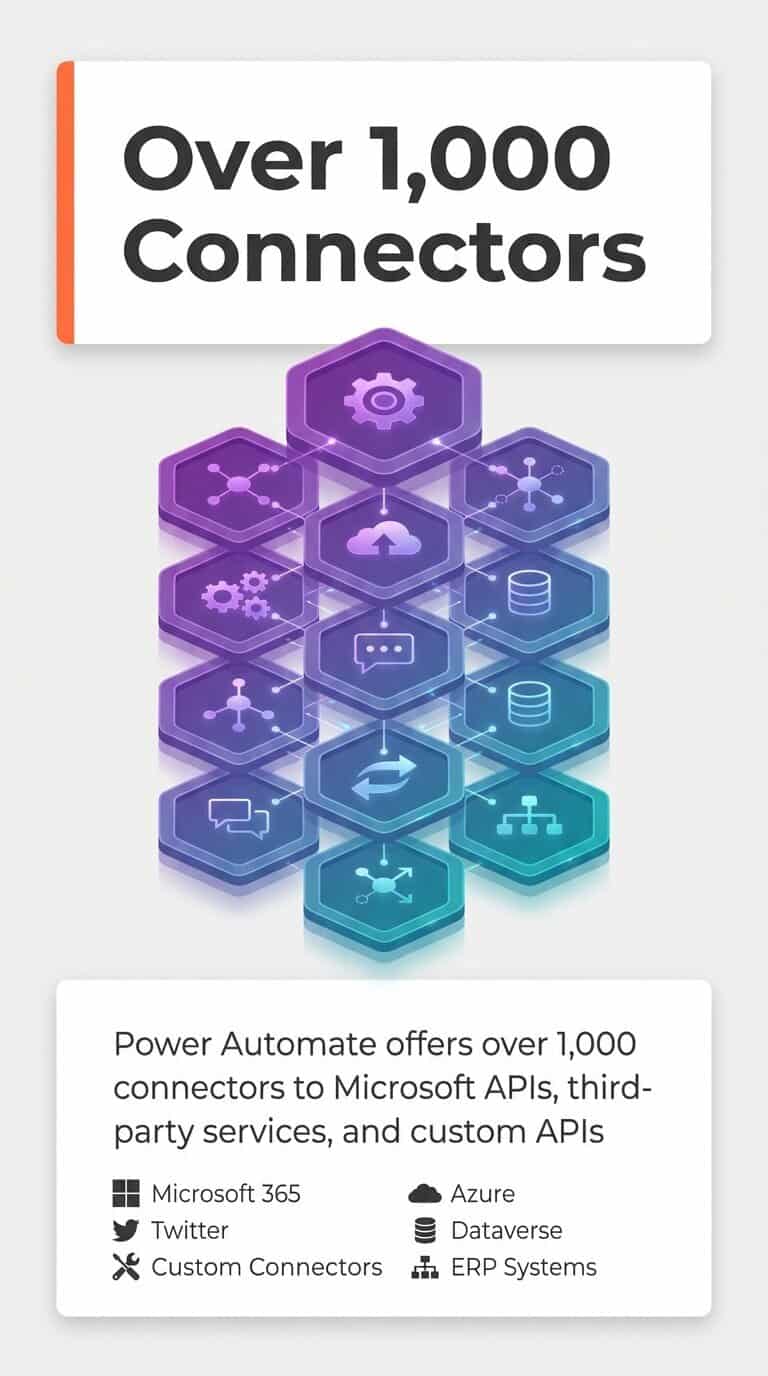
Each connector exposes specific triggers and actions for a particular service. The SharePoint connector provides triggers for new files, modified items, and deleted documents. The Outlook connector offers actions for sending emails, creating calendar events, and moving messages.
Microsoft maintains standard connectors for common services like Office 365, Salesforce, and Dropbox. Premium connectors provide access to enterprise systems like SAP, Oracle, and specialized business applications. Custom connectors allow organizations to integrate proprietary systems and internal APIs.
The breadth of available connectors determines what you can automate. More connectors mean more integration possibilities and fewer systems that require custom development.
Triggers: Starting Automated Workflows
Triggers define when flows execute. Every automated or scheduled flow starts with a trigger that monitors for specific conditions or events.
Triggers fall into several categories. Polling triggers check for changes at regular intervals, like monitoring a folder for new files every five minutes. Webhook triggers receive immediate notifications when events occur, providing faster response times. Schedule triggers activate flows based on time or date patterns.
Trigger configuration determines flow efficiency. Frequent polling can consume resources unnecessarily, while webhook triggers provide real-time responses with minimal overhead.
Actions: Executing Automated Tasks
Actions perform the actual work in flows. After a trigger fires, the flow executes a sequence of actions across connected applications.
Actions include creating records, sending messages, updating data, moving files, calling APIs, and transforming information. Each connector provides specific actions for its service. Complex flows combine dozens of actions across multiple systems.
Actions can execute sequentially or in parallel. Sequential actions run one after another, with each action receiving data from previous steps. Parallel branches execute multiple actions simultaneously, improving performance when actions don’t depend on each other.
Expressions and Dynamic Content
Expressions enable data manipulation within flows. These formula-based expressions transform data, perform calculations, format strings, and evaluate conditions.
Dynamic content passes data between actions. When one action completes, its output becomes available to subsequent actions. This data flow allows information to move through the workflow, with each action building on previous results.
The combination of expressions and dynamic content creates flexible workflows that adapt to different data and scenarios without hardcoded values.
Microsoft Dataverse Integration
Dataverse provides a secure, cloud-based data platform for Power Platform applications. Power Automate integrates deeply with Dataverse, enabling workflows that create, read, update, and delete Dataverse records.
This integration becomes particularly valuable when combining Power Automate with Power Apps and Power BI. Flows can trigger when users interact with Power Apps, processing data and updating Dataverse tables. Power BI reports can use Dataverse as a data source, displaying information maintained by automated workflows.
AI and Copilot Capabilities in Power Automate
AI features are transforming how users create and interact with Power Automate. These capabilities lower the technical barrier to automation while enhancing what automated workflows can accomplish.
Copilot for Flow Creation
Copilot in Power Automate allows users to describe automation needs in natural language. Instead of manually selecting triggers and actions, users explain what they want to automate, and Copilot generates the flow structure.
A user might type “When someone fills out my form, add them to my Excel spreadsheet and send me an email.” Copilot interprets this request, identifies the appropriate connectors, configures triggers and actions, and builds the flow foundation.
This natural language interface makes automation accessible to users who understand their business processes but lack technical automation expertise. Teams move from describing what they need to reviewing and refining generated flows.
AI Builder for Intelligent Automation
AI Builder adds pre-built AI models to Power Automate workflows. These models handle tasks like form processing, object detection, text recognition, and sentiment analysis without requiring data science expertise.
Flows can extract data from invoices, receipts, and forms using document processing models. Image recognition capabilities enable flows that identify objects, read text from images, or detect specific visual elements.
The text analytics models analyze sentiment, extract key phrases, and identify language from unstructured text. These capabilities enable automated content routing, feedback analysis, and intelligent document classification.
Process Mining and Recommendations
Process advisor analyzes how users actually perform tasks, identifying automation opportunities. This capability maps existing processes by monitoring user actions, then recommends where automation can eliminate repetitive work or bottlenecks.
Organizations use process mining to discover automation candidates they didn’t know existed. The data-driven approach identifies high-impact opportunities based on actual task frequency and time consumption rather than assumptions about where automation might help.
Common Business Applications and Use Cases
Power Automate addresses automation needs across departments and industries. Real-world applications demonstrate how organizations apply the platform to specific business challenges.
Approval Workflows
Approval automation eliminates manual routing and tracking. Flows automatically send approval requests to designated reviewers, track responses, send reminders for overdue approvals, and notify requesters of decisions.
A purchase request flow might route requests to different approvers based on amount thresholds. Requests under $1,000 go to department managers, while larger amounts require executive approval. The flow tracks the approval chain, maintains audit history, and updates status automatically.
Email and Notification Management
Email automation reduces manual message handling. Flows monitor inboxes for specific messages, extract attachments, save them to SharePoint or OneDrive, and notify relevant team members.
Customer support teams use email flows to create tickets automatically when messages arrive at support addresses. The flow extracts key information, categorizes the request, assigns it to the appropriate queue, and sends an acknowledgment to the customer.
Data Collection and Synchronization
Power Automate keeps data synchronized across systems without manual data entry. Flows detect changes in one system and propagate updates to connected applications automatically.
Sales organizations synchronize lead data between marketing automation platforms and CRM systems. When marketing identifies qualified leads, flows automatically create CRM records, assign leads to sales representatives, and trigger follow-up workflows.
Document Processing and Management
Document workflows automate file handling, routing, and processing. Flows move documents through approval stages, apply metadata, convert formats, and organize files based on content or properties.
Human resources departments automate new hire paperwork. When employees submit forms, flows extract information, generate required documents, route them for signatures, and file completed paperwork in appropriate folders with proper metadata.
Social Media Monitoring and Response
Social media flows track brand mentions, keywords, or hashtags across platforms. When relevant content appears, flows can alert team members, log mentions to spreadsheets, or trigger response workflows.
Marketing teams monitor campaign hashtags. Flows collect mentions, analyze sentiment, identify influencers, and compile engagement metrics automatically rather than requiring manual social media monitoring.
Microsoft 365 Integration Scenarios
Power Automate’s deep integration with Microsoft 365 enables sophisticated productivity automation. Flows connect Outlook, Teams, SharePoint, OneDrive, Planner, and other Microsoft services seamlessly.
Teams collaboration flows post channel notifications when specific events occur, create tasks from email messages, schedule meetings automatically, and synchronize information between SharePoint lists and Teams channels. The native Microsoft 365 integration requires no additional connectors or authentication configuration.
Power Automate Within the Power Platform Ecosystem
Power Automate gains significant value from its position within Microsoft’s Power Platform. The platform includes Power Apps for custom application development, Power BI for business analytics, Power Pages for external websites, and Copilot Studio for conversational AI.
Integration with Power Apps
Power Apps and Power Automate complement each other. Custom applications built in Power Apps trigger Power Automate flows to handle complex business logic, data processing, and external system integration.
A mobile inspection app built in Power Apps might trigger a flow when inspectors submit reports. The flow processes inspection data, generates PDF reports, routes them for review, updates compliance databases, and schedules follow-up inspections when issues are identified.
Data Integration with Power BI
Power Automate enhances Power BI by automating data refresh, alert distribution, and report generation. Flows can trigger when Power BI detects specific data conditions, sending notifications or initiating workflows based on business intelligence insights.
Sales dashboards in Power BI can trigger flows when performance metrics cross thresholds. The flow automatically notifies managers, creates improvement action items, and schedules review meetings without manual monitoring.
Copilot Studio for Conversational Automation
Copilot Studio (formerly Power Virtual Agents) builds conversational chatbots that integrate with Power Automate flows. Chatbots handle initial user interactions, gather information, then trigger flows to complete complex tasks or access backend systems.
An IT support chatbot collects issue details from users, then triggers a Power Automate flow to create support tickets, check system status, or execute automated troubleshooting steps. The combination provides conversational interfaces backed by powerful automation capabilities.
Licensing, Pricing, and Plan Selection
Power Automate licensing follows a consumption-based model with several plan options. Understanding these options helps organizations budget appropriately and select plans that match their automation needs.
Free Trial and Seeded Plans
Microsoft offers a free trial that provides full Power Automate capabilities for 90 days. This trial period allows organizations to test automation scenarios before committing to paid plans.
Many Microsoft 365 plans include limited Power Automate capabilities. Office 365 E3, E5, and Microsoft 365 Business Premium plans provide access to standard connectors and basic cloud flows. These seeded plans support individual productivity automation but have limitations for enterprise scenarios.
Per-User Plans
Per-user plans provide individuals with full Power Automate capabilities. The per-user license includes unlimited flows, premium connectors, RPA with attended desktop flows, AI Builder capacity, and advanced features like custom connectors.
Organizations select per-user plans when specific users require extensive automation capabilities. Knowledge workers who build multiple flows, process specialists who create complex workflows, and citizen developers who automate departmental processes benefit from per-user licensing.
Per-Flow Plans
Per-flow plans license specific automated workflows rather than individual users. Organizations purchase capacity for each flow that requires premium features, allowing unlimited users to benefit from those automations.
This licensing model suits scenarios where few flows serve many users. A company-wide expense approval flow or customer onboarding automation might serve hundreds of employees but only require one per-flow license.
Process and Capacity Plans
Process plans provide licenses for unattended RPA scenarios. These plans enable desktop flows that run on virtual machines without user interaction, supporting large-scale automation initiatives.
Organizations purchase process plans to automate high-volume, repetitive tasks across multiple virtual machines. Financial closing processes, data migration projects, and legacy system integration often require this unattended automation capacity.
Premium Connector Requirements
Standard connectors (Microsoft 365, Outlook, SharePoint, OneDrive) work with seeded Office 365 plans. Premium connectors (Salesforce, SQL Server, HTTP requests, custom connectors) require paid Power Automate licenses.
Organizations must evaluate which connectors their automations require. A flow that only connects Office 365 services might not need additional licensing, while workflows that integrate external databases or third-party applications require premium plans.
Security, Governance, and Compliance Considerations
Enterprise automation requires robust security and governance capabilities. Power Automate suits non-technical users through its accessibility features and integration with the Microsoft ecosystem, but this accessibility demands strong governance frameworks.

Data Loss Prevention Policies
Data Loss Prevention (DLP) policies control which connectors can work together in flows. Organizations create policies that prevent sensitive data from flowing between business and consumer connectors.
A DLP policy might allow internal Microsoft 365 connectors to work together while blocking connections to consumer services like Twitter or personal Dropbox accounts. These policies enforce data residency requirements and prevent inadvertent data exposure.
Environment Management
Power Platform environments provide isolation boundaries for flows, apps, and data. Organizations create separate environments for development, testing, and production, maintaining proper controls over what runs in each environment.
Managed Environments add additional governance capabilities. These environments enforce specific security policies, monitor flow usage, provide enhanced support features, and enable tighter control over automation deployments.
Connection Security
Connections in Power Automate authenticate to external services using OAuth, API keys, or service accounts. These connections store credentials securely, allowing flows to access services without embedding passwords in workflow definitions.
Organizations control connection sharing and ownership. Connections can be designated as personal (only accessible to the creator) or shared across teams. Connection ownership policies ensure flows continue running even when employees leave.
Audit and Monitoring
Power Platform provides comprehensive logging and monitoring capabilities. The Power Platform admin center tracks flow execution history, connection usage, error rates, and resource consumption.
Audit logs capture who creates, modifies, or deletes flows. This audit trail supports compliance requirements and security investigations. Flow owners receive notifications when flows fail repeatedly, enabling proactive issue resolution.
Compliance and Certification
Power Automate maintains compliance certifications including SOC 1, SOC 2, ISO 27001, HIPAA, and various regional standards. These certifications demonstrate Microsoft’s commitment to security and enable organizations to use the platform for regulated workloads.
Data residency controls ensure flow data remains in specific geographic regions. Organizations subject to GDPR, CCPA, or other privacy regulations can configure Power Automate to meet data sovereignty requirements.
Building with Purpose: Strategic Automation Planning
Successful Power Automate adoption requires intentional strategy rather than ad hoc automation. Organizations that build with purpose create sustainable automation programs that deliver measurable business value.
Start by identifying high-impact processes. The most successful organizations focus on automating repetitive tasks that consume significant time, have clear business rules, and affect multiple people. Process mining capabilities help quantify the potential impact before building automations.
Establish governance early. Define who can create flows, what connectors are approved, and how flows get reviewed and deployed. This governance prevents sprawl while encouraging innovation within appropriate boundaries.
Build automation capabilities gradually. Power Automate’s low-code approach enables citizen developers, but successful programs balance accessibility with quality standards. Provide training, templates, and best practices that help users create reliable, maintainable flows.
Monitor and optimize continuously. Track flow performance, error rates, and business outcomes. Successful automations free time for higher-value work, reduce processing times, and improve accuracy. Measure these impacts to demonstrate value and identify additional automation opportunities.
The journey toward automation maturity takes time. Organizations move from simple personal productivity flows to complex cross-system workflows that transform business processes. Power Automate provides the flexibility to support this evolution, starting with accessible automation and scaling to enterprise-grade solutions.
Power Automate represents more than workflow automation. The platform enables organizations to create digitally connected enterprises where systems work together seamlessly, employees focus on judgment rather than repetition, and business processes adapt quickly to changing needs.
Your automation journey begins with understanding what’s possible, identifying where automation delivers value, and taking systematic steps toward implementation. The tools exist. The opportunity awaits. The path forward requires purposeful action.
For organizations ready to elevate their automation capabilities, explore how strategic Power Automate adoption creates sustainable competitive advantage. Learn how Power Automate ignites productivity across departments.
Digital innovation is a journey, not a race. We’ll work with you to create the best roadmap for your destination.