
What is Microsoft Fabric?
Microsoft Fabric brings data, analytics and AI together in one connected platform. See how it can simplify the way your teams manage data, collaborate and turn information into useful insights.
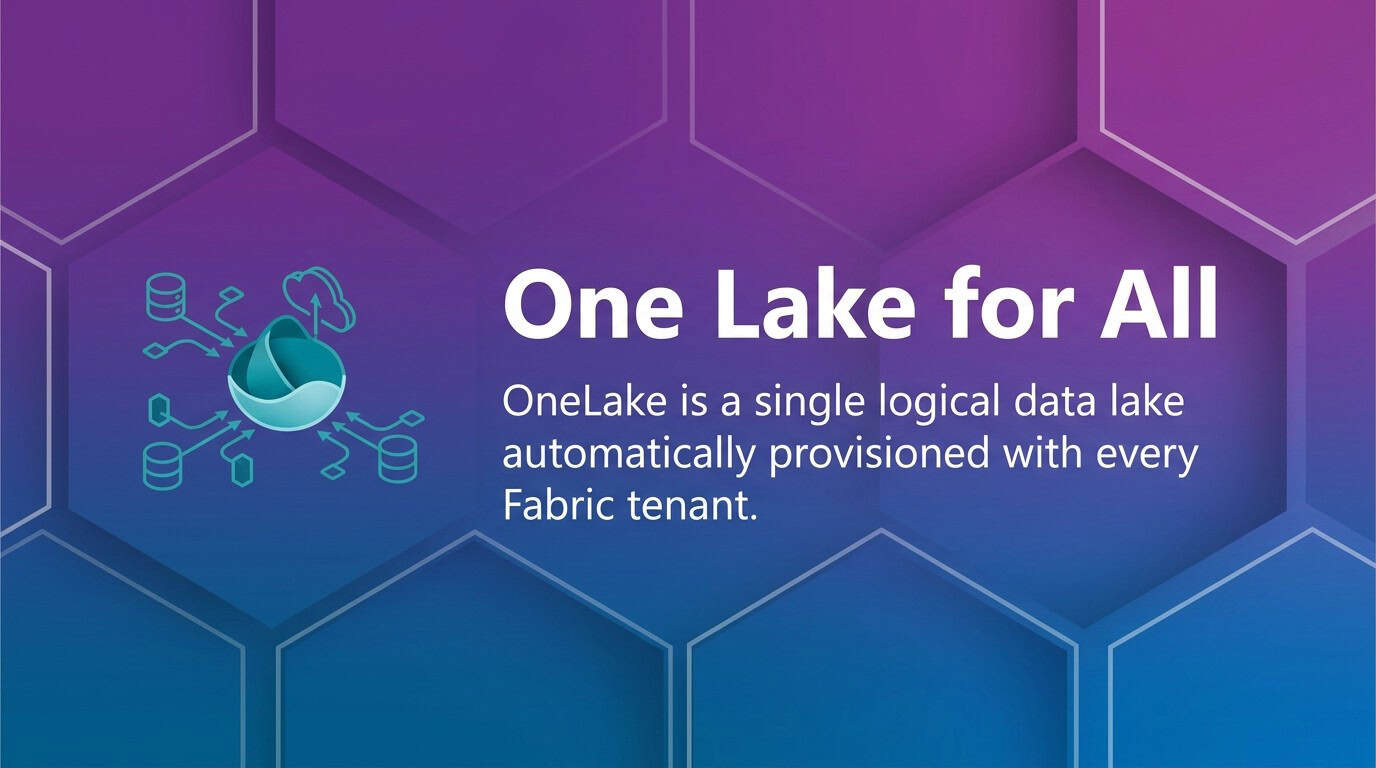
Microsoft Fabric is a unified SaaS analytics platform that integrates data engineering, warehousing, science, and Power BI into a single environment built on Azure. OneLake serves as the single logical data lake automatically provisioned with every tenant, eliminating data silos across workloads. Fabric delivers real-time intelligence for streaming data, lakehouse architecture for all data types, and Direct Lake mode that reads data from OneLake without Power BI import latency.
Organizations moving from pilots to production gain measurable value through reduced reporting delays and streamlined governance. Implementation follows a progression from capacity planning and workspace setup through data ingestion, transformation, and enterprise-scale governance.
Enterprise teams watching the analytics market in 2026 noticed a shift. Organizations stopped asking whether to consolidate their data platforms and started asking how to do it without breaking what already works. Microsoft Fabric delivers a unified analytics platform built on Azure and delivered entirely as SaaS, bringing together capabilities that previously lived in separate products. The platform reshapes how data teams handle everything from ingestion to visualization.
The Microsoft Fabric Platform
The Fabric architecture centers on OneLake, a single logical data lake automatically provisioned with every Fabric tenant. This unified storage layer eliminates the traditional problem of data scattered across multiple storage accounts, lakes, and warehouses.
Every workload in Fabric writes to and reads from OneLake using open Delta Lake format. Data engineers build pipelines that land data once, and data scientists, analysts, and BI developers all work from that same copy.
Core Workloads in the Unified Platform
Fabric organizes analytics capabilities into distinct workloads that share the same data foundation. Each workload addresses specific roles and use cases without forcing teams into separate platforms.
Data Factory handles data integration and transformation. Teams use copy activities, dataflows, and orchestration pipelines to move data from source systems into OneLake. The workload supports both code-free visual design and custom transformations.
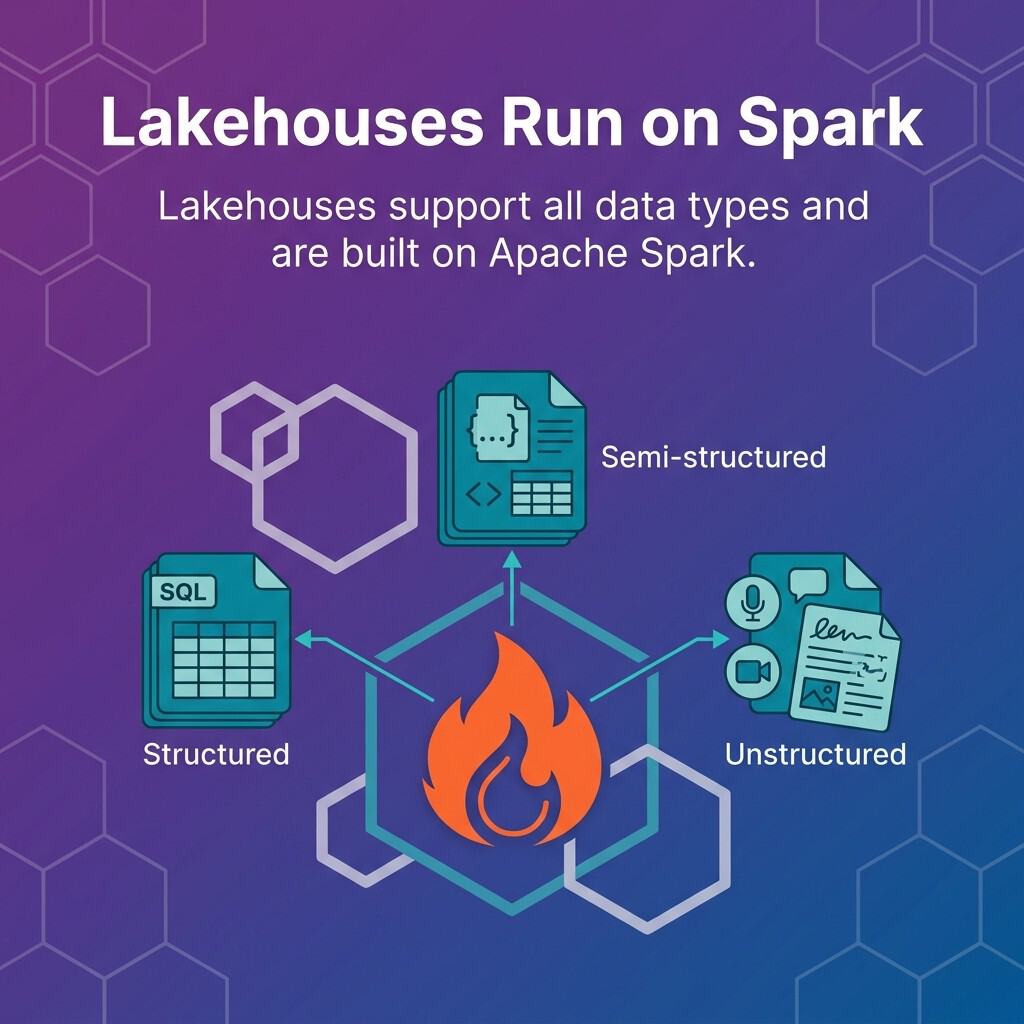
Data Engineering provides Apache Spark environments for large-scale data processing. Lakehouses support all data types and are built on Apache Spark, enabling structured, semi-structured, and unstructured data processing in the same environment. Engineers write notebooks, schedule jobs, and build medallion architectures without managing Spark clusters.
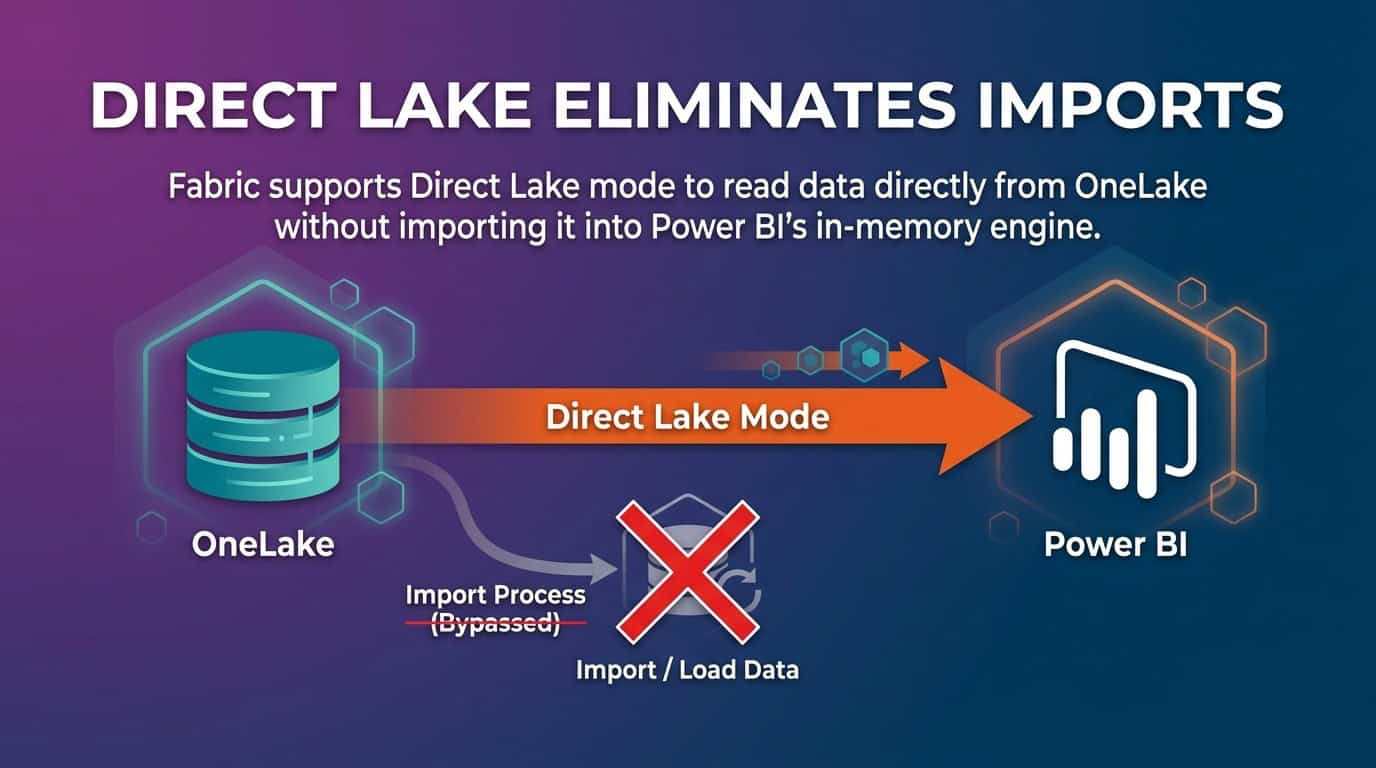
Data Warehouse delivers SQL-based analytics with enterprise-grade performance. Teams familiar with traditional data warehousing can query structured data using T-SQL while benefiting from separation of storage and compute. Fabric supports Direct Lake mode to read data directly from OneLake without importing it into Power BI’s in-memory engine, reducing latency and storage duplication.
Data Science integrates machine learning workflows into the analytics platform. MLflow in Fabric allows for model management with multiple version registrations, enabling teams to train, track, and deploy models alongside the data pipelines that feed them.
Real-Time Intelligence addresses streaming scenarios. Fabric real-time intelligence supports event-driven scenarios, streaming data, and data logs. The workload can ingest gigabytes to petabytes of streaming data from IoT devices, application logs, and event hubs, making real-time analytics accessible without separate streaming infrastructure.
Power BI remains the visualization and reporting layer but now integrates natively with all Fabric workloads. Reports connect to lakehouses, warehouses, and real-time data without moving data out of OneLake.
How Microsoft Fabric Differs from Azure Synapse
Organizations familiar with Azure Synapse Analytics often ask how Fabric relates to their existing investments. Fabric is not a replacement for Azure services but rather a higher-level integration layer that unifies them.
Synapse Analytics remains available as an Azure PaaS offering where teams manage dedicated SQL pools, Spark pools, and integration pipelines separately. Fabric takes components from Synapse, Azure Data Factory, and Power BI and delivers them as a cohesive SaaS experience with OneLake as the unifying storage layer.
Teams running Synapse workspaces can continue using them. Teams starting new analytics projects gain faster time to value with Fabric because compute, storage, and governance come preconfigured. The choice depends on whether you need infrastructure control or prefer managed simplicity.
Setting Up Workspaces and Organizing Your Data Platform
Workspaces in Fabric serve as collaborative containers for analytics projects. Proper workspace design affects security, performance, and long-term maintainability.
Each workspace maps to a specific team, project, or business domain. Avoid creating a single workspace for the entire organization because it limits access control granularity and makes capacity monitoring harder.
Workspace Design Patterns
Common workspace patterns include organizing by department, by project, or by data domain. Department-based workspaces group analytics for finance, operations, or marketing teams, for example. Project-based workspaces isolate initiatives like customer churn prediction or supply chain optimization. Domain-based workspaces align with data mesh principles where product teams own their analytics end to end.
Each pattern has trade-offs. Department workspaces simplify cost allocation but can create silos. Project workspaces enable focused collaboration but require governance to prevent duplicate data assets. Domain workspaces promote ownership but demand mature data governance practices.
Select the pattern that matches your organization’s structure and culture. You can refactor workspaces later, but starting with a clear organizing principle reduces rework.
Role-Based Access Control in Workspaces
Fabric workspaces support four roles: Admin, Member, Contributor, and Viewer. Admins manage workspace settings and membership. Members create and modify items. Contributors create items but cannot manage workspace settings. Viewers consume published reports and data without editing capabilities.
Assign roles based on job function. Data engineers typically need Member or Contributor access to build pipelines and notebooks. Business analysts often receive Viewer access to consume reports. Governance teams require Admin access to enforce policies and monitor usage.
Avoid granting Admin access broadly because it allows deletion of workspace items and changes to capacity assignments. Use security groups from Microsoft Entra ID to manage workspace membership at scale rather than adding individual users.
Connecting Workspaces to Capacity
Every workspace must connect to a Fabric capacity to run workloads. During workspace creation, you assign it to an available capacity or use the trial capacity if one is active.
Capacity assignment determines where compute operations execute and which CU pool the workspace draws from. Organizations with multiple capacities should map workspaces to capacities based on workload priority and cost allocation needs.
Production workspaces belong on dedicated capacities separate from development and testing environments. This separation prevents experimental workloads from consuming resources needed for business-critical reporting and prevents development errors from affecting production users.
Implementing Data Ingestion and Integration Workflows
Data ingestion brings source system data into OneLake. Microsoft Fabric provides multiple tools for ingestion depending on data volume, format, and transformation requirements.
The Data Factory workload handles most ingestion scenarios. Copy activities move data from on-premises databases, cloud applications, files, and APIs into lakehouse tables or warehouse tables. Dataflows offer low-code transformations during ingestion for users familiar with Power Query.
Copy Pipelines for Batch Data
Copy activities in Data Factory support over 100 connectors including SQL Server, Oracle, Salesforce, SAP, and Azure Blob Storage. Each connector authenticates using credentials stored securely in the workspace or referenced from Azure Key Vault.
Using Dataflows for Transformation During Ingestion
Dataflows provide a visual interface for data transformation using Power Query. Teams familiar with Excel or Power BI find dataflows intuitive because they use the same transformation language.
Dataflows work well for moderate data volumes and users who prefer low-code tools. For large-scale transformations or complex business logic, Spark notebooks in the Data Engineering workload offer more flexibility and performance.
Ingesting Streaming Data for Real-Time Scenarios
Real-time ingestion requires the Real-Time Intelligence workload. Create an event stream to connect to sources like Azure Event Hubs, Kafka, or IoT devices. The event stream continuously ingests data and writes it to a KQL database or lakehouse table.
Real-time scenarios include monitoring application telemetry, tracking IoT sensor data, or analyzing clickstream events. The ingestion pipeline processes data as it arrives without waiting for batch windows.
Configure transformation logic in the event stream to filter events, enrich records, or route data to different destinations based on content. Real-time transformations use Kusto Query Language (KQL) or stream processing functions depending on the use case.
Integrating Power BI for Business Intelligence and Reporting
Power BI in Microsoft Fabric connects directly to OneLake data without importing copies. This integration reduces data duplication and accelerates report development.
Create Power BI reports by connecting to lakehouse tables, warehouse tables, or KQL databases. Use DirectQuery mode to query data in real-time or use Direct Lake mode for optimized performance without the memory limits of Import mode.
Leveraging Direct Lake Mode for Performance
Direct Lake mode reads parquet files directly from OneLake using Power BI’s VertiPaq engine without importing data into Power BI’s in-memory cache. This eliminates the need for scheduled refreshes while maintaining fast query performance.
Direct Lake works best for datasets under the capacity’s memory limits and when queries filter on partitioned columns. Monitor query performance using Power BI’s performance analyzer and adjust table structures if queries become slow.
Building Semantic Models for Business Metrics
Semantic models define business logic, calculations, and relationships between tables. Create a semantic model in your workspace and add tables from lakehouses or warehouses as data sources.
Define relationships between tables by joining keys like CustomerID or ProductID. Create measures using DAX expressions to calculate metrics like total revenue, average order value, or customer lifetime value.
Organize measures into display folders and add descriptions to help report authors understand what each metric represents. This documentation becomes critical as more users create reports from the same semantic model.
Publish the semantic model to your workspace and set permissions so report creators can connect to it. This pattern promotes reuse because multiple reports share the same business logic rather than each report defining calculations independently.
Scheduling Report Refreshes and Managing Data Latency
Import mode reports require scheduled refreshes to update data from source systems. Configure refresh schedules in the workspace settings for each semantic model.
Direct Lake and DirectQuery modes eliminate scheduled refreshes because reports query live data. The trade-off is query performance depends on the underlying data source’s response time.
For time-sensitive reporting, combine Real-Time Intelligence with Power BI. Stream data into a KQL database and connect Power BI reports to it. Users see data within seconds of ingestion without manual refresh actions.
Establishing Governance and Security Across Workloads
Governance ensures data quality, security, and compliance as Microsoft Fabric usage scales across the organization. Without governance, data duplication, access control gaps, and inconsistent definitions undermine platform value.
Fabric integrates with Microsoft Purview for data cataloging, classification, and lineage tracking. Purview scans OneLake automatically, discovering tables, files, and reports without manual registration.
Row-Level Security in Semantic Models
Row-level security (RLS) restricts which rows users can see in reports based on their identity or role. Define RLS rules in Power BI semantic models using DAX filter expressions.
Test RLS rules by viewing the report as a specific user or role. Verify that sensitive data remains hidden from unauthorized users. RLS applies regardless of whether the semantic model uses Import, DirectQuery, or Direct Lake mode.
Classifying Sensitive Data with Microsoft Purview
Microsoft Purview identifies sensitive data like credit card numbers, social security numbers, or personal health information using built-in classifiers. Apply sensitivity labels to lakehouse tables, warehouse tables, or Power BI reports to enforce encryption and access policies.
Sensitivity labels propagate from data sources to reports. If a lakehouse table contains customer email addresses and is labeled “Confidential,” any Power BI report using that table inherits the label. Users without appropriate clearance cannot open the report even if they have access to the workspace.
Tracking Data Lineage for Impact Analysis
Data lineage shows how data flows from source systems through pipelines, transformations, and into reports. Purview captures lineage automatically by scanning Fabric workspaces and tracing dependencies.
View lineage in the Purview Data Catalog by searching for a table or report. The lineage diagram shows upstream data sources and downstream consumers. This visibility helps teams assess the impact of schema changes or data quality issues.
For example, if a source system changes a column name, lineage reveals which pipelines, notebooks, and reports depend on that column. Teams can proactively update downstream assets before users encounter errors.
Operationalizing Machine Learning Models in Fabric
Data Science workflows in Microsoft Fabric support the full machine learning lifecycle from experimentation to production deployment. Teams train models using notebooks, track experiments with MLflow, and deploy models to serve predictions at scale.
Tracking Experiments with MLflow Integration
MLflow tracks model parameters, metrics, and artifacts across training runs. Fabric integrates MLflow natively so teams can log experiments without additional infrastructure.
Deploying Models for Batch and Real-Time Scoring
Batch scoring applies a model to large datasets on a schedule.
Real-time scoring requires deploying the model as a REST API endpoint. Fabric supports exporting models to Azure Machine Learning for deployment or using custom endpoints within the workspace. Applications call the endpoint with input features and receive predictions in milliseconds.
Real-time scenarios include fraud detection, dynamic pricing, or personalized content delivery. The deployment pattern depends on latency requirements and integration with existing applications.
Fabric is the Next Frontier
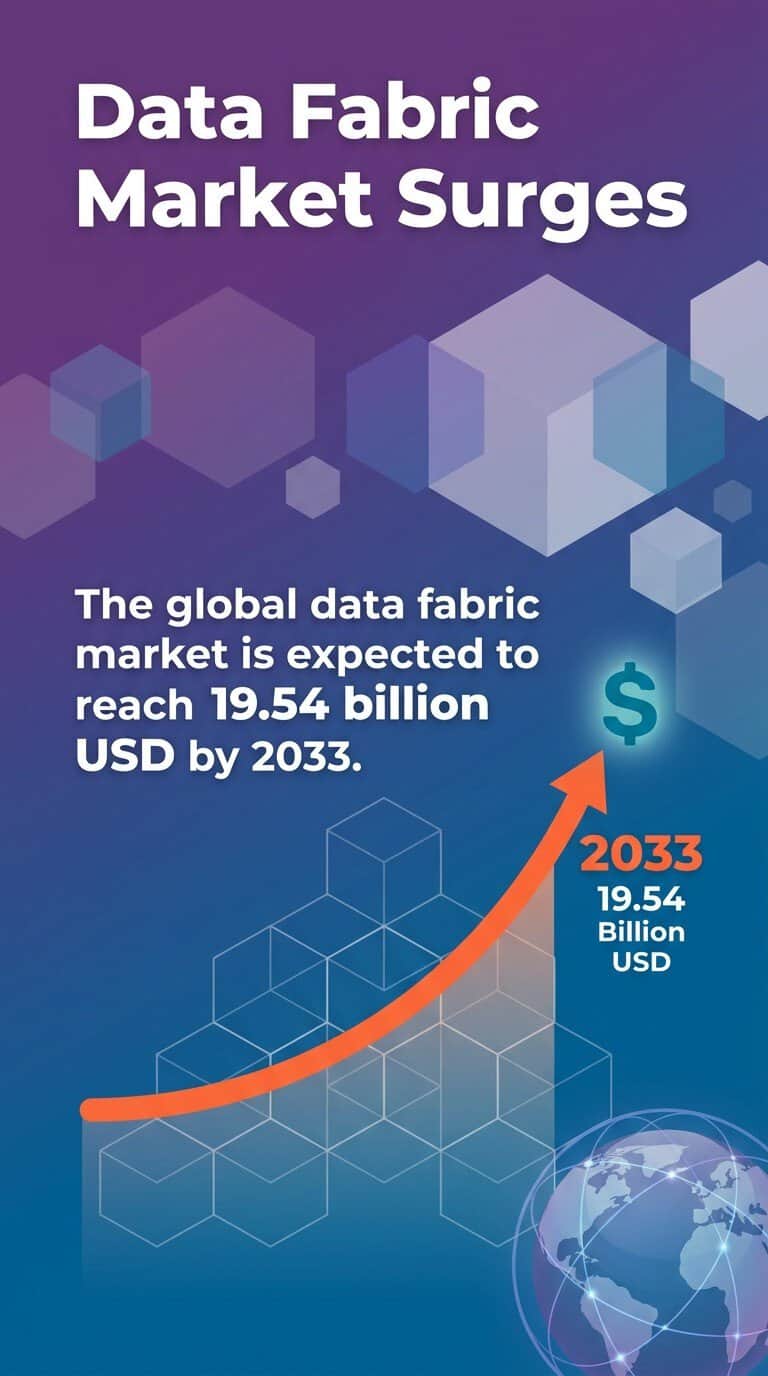
The analytics market continues shifting toward unified platforms. The global data fabric market is expected to reach 19.54 billion USD by 2033, reflecting enterprise demand for integrated capabilities rather than point solutions. Organizations building purposeful strategies around unified platforms position themselves to outpace competitors still managing fragmented data ecosystems.
Your implementation roadmap should reflect your organization’s maturity, priorities, and constraints. Teams that blend technology deployment with operational discipline, domain expertise, and governance realize sustainable value from Microsoft Fabric. If you’re just starting your Microsoft Fabric journey or already have it but need a partner to help you realize its value, we are just a click away! Feel free to contact our experts to have a chat about Fabric for your organization.
Smartbridge is a Microsoft Fabric Featured Partner. Check out what that means here or visit the page!